



How to Make AI Videos for Free (in 3 Minutes)

Create AI videos with 240+ avatars in 160+ languages.
Making an AI video isn’t a one-size-fits-all process.
One of the first decisions you'll have to make is which AI video creation tool you will use, and the best option depends on the type of video you want to create.
If you're trying to generate an AI video clip for use in a marketing video, a social media post, or in a storyboard for a short film, you'll need a creative AI video generator.
If you're trying to make something more practical like a training video, a product demo video, or an explainer video, then you'll need an AI video platform that's suitable for business use cases.
In this post, I'm going to show you how to make both types, starting with creative AI videos.
How to make creative AI videos
Step 1: Sign up for a free Synthesia account
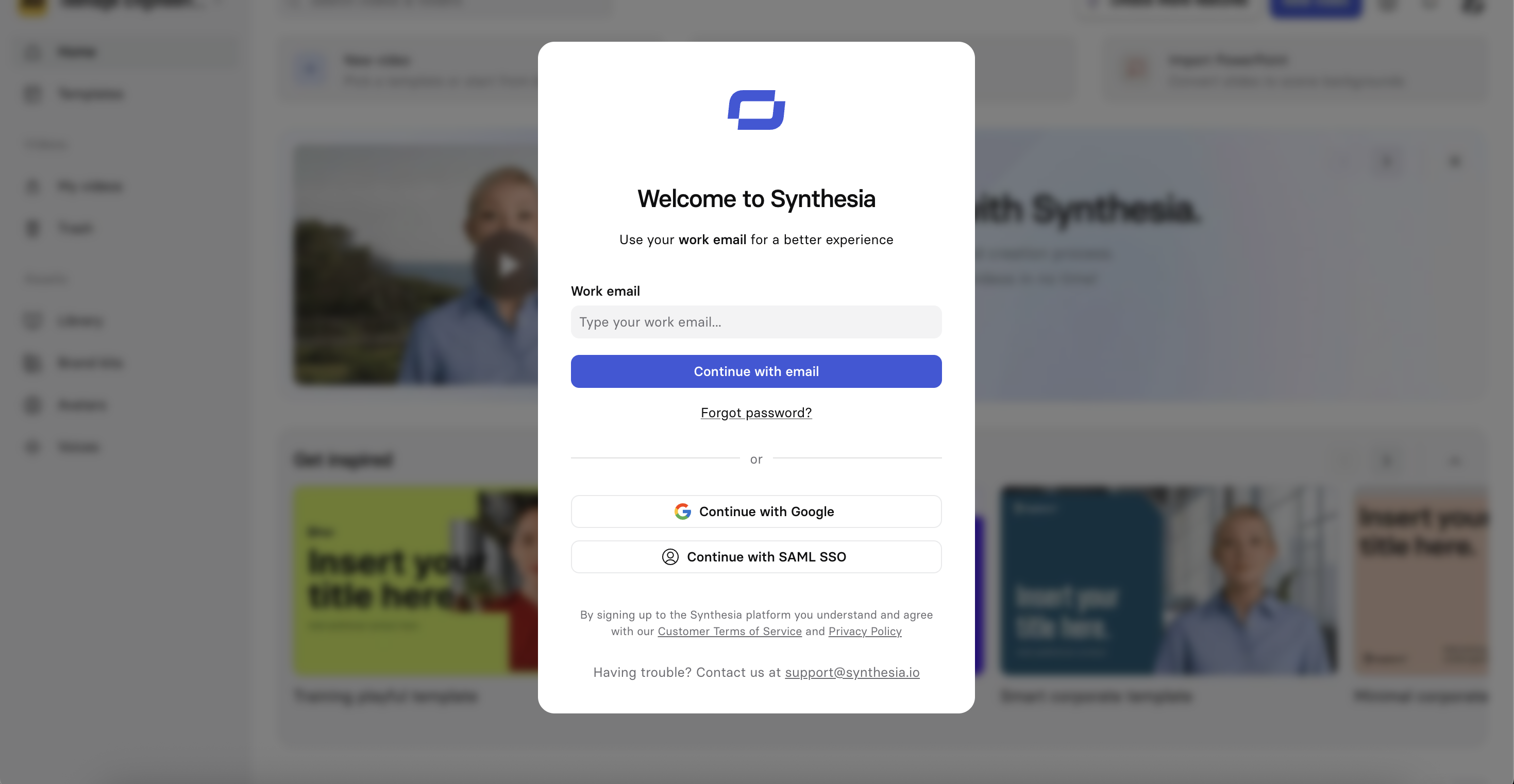
Start by creating a free Synthesia account. You can sign up using your email address or a Google account.
Verify via the code sent to your inbox.
Step 2: Navigate to the AI Playground
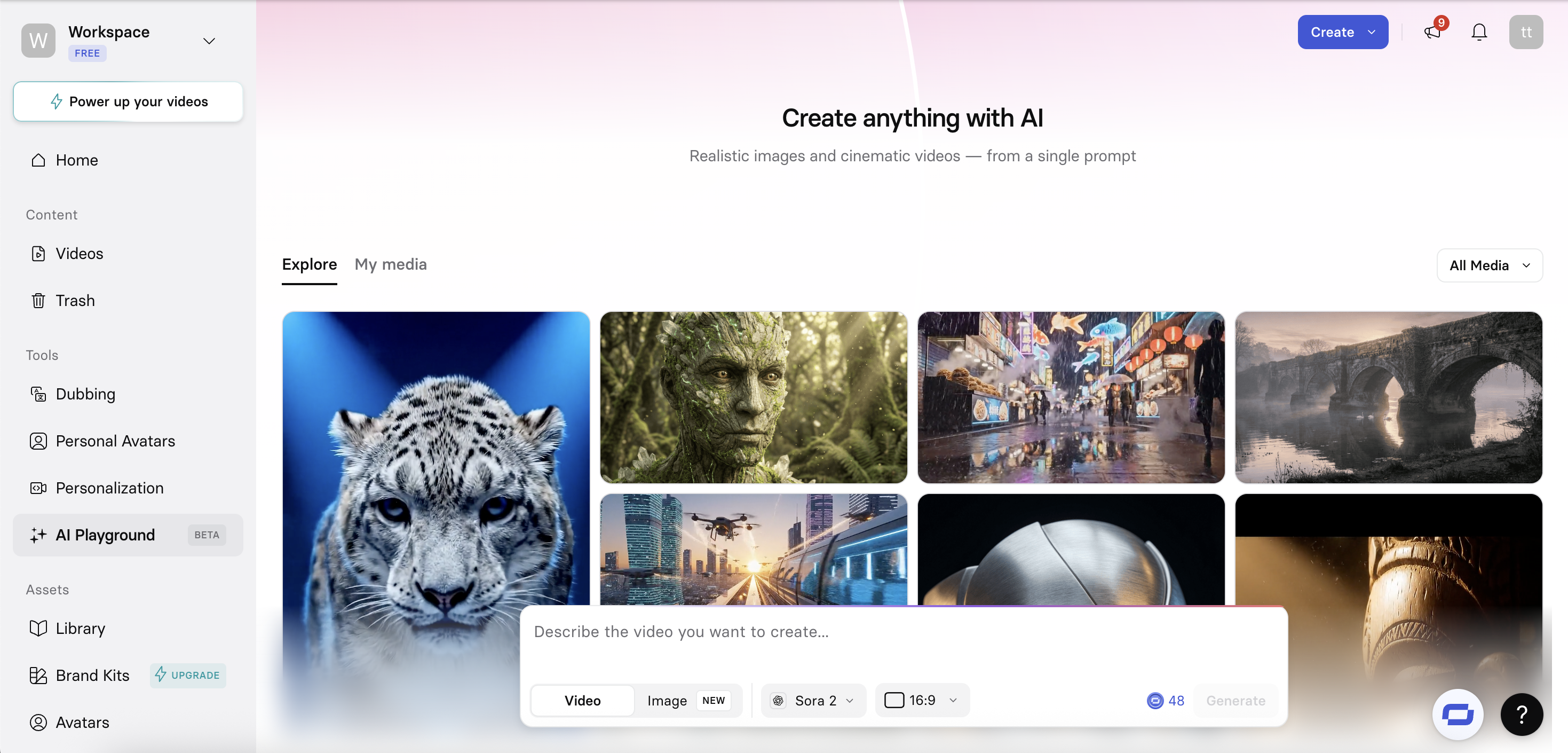
After logging in and going through the onboarding steps, navigate to the AI Playground which can be found in the left-hand sidebar from the main Synthesia dashboard.
The AI Playground is where you can generate video clips and images using text prompts. It allows you to test multiple AI models in one place and quickly compare results.
Step 3: Input your prompt
In the prompt field, describe the video you want to generate. The more specific your prompt is, the better the results will be.
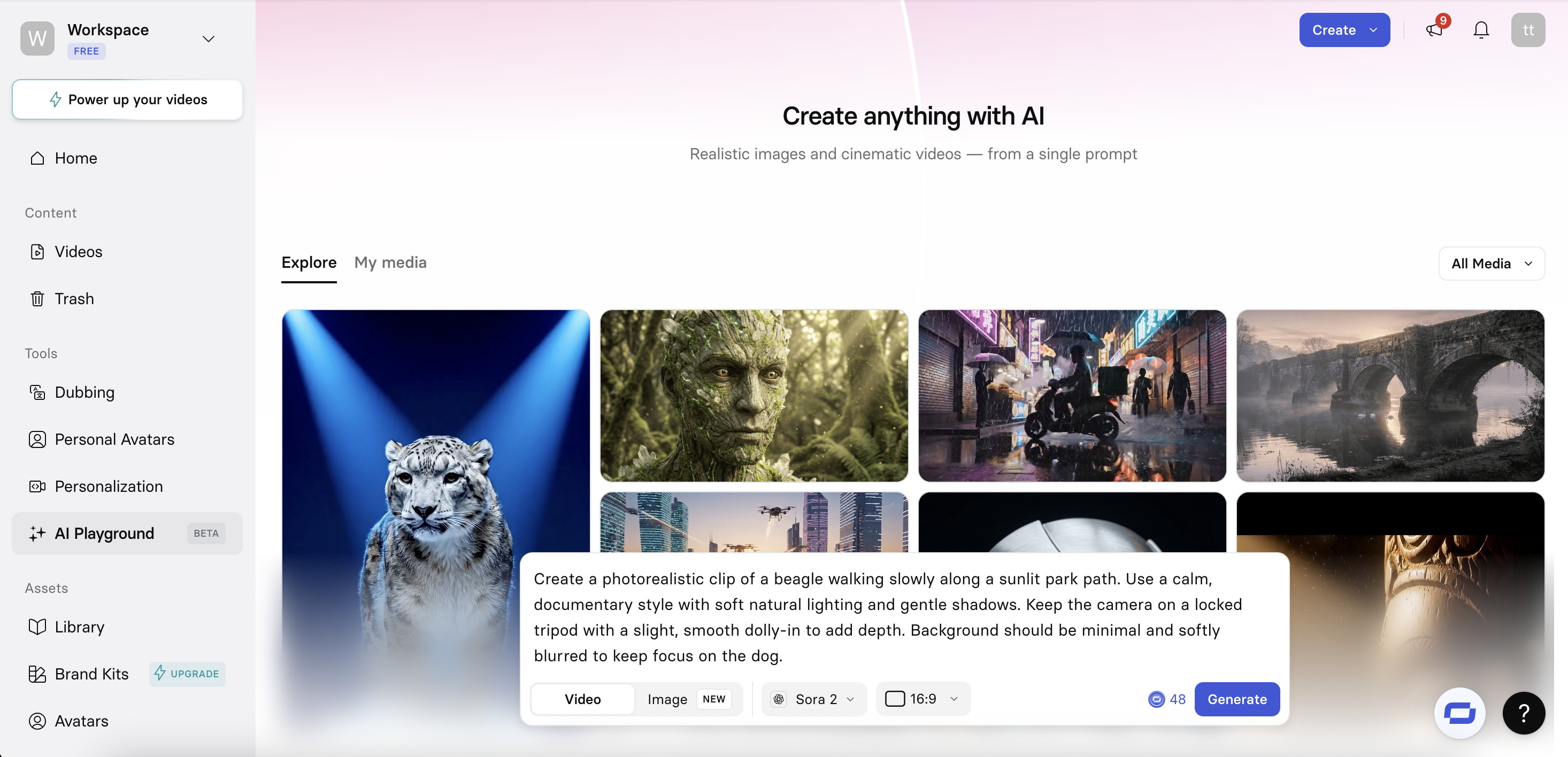
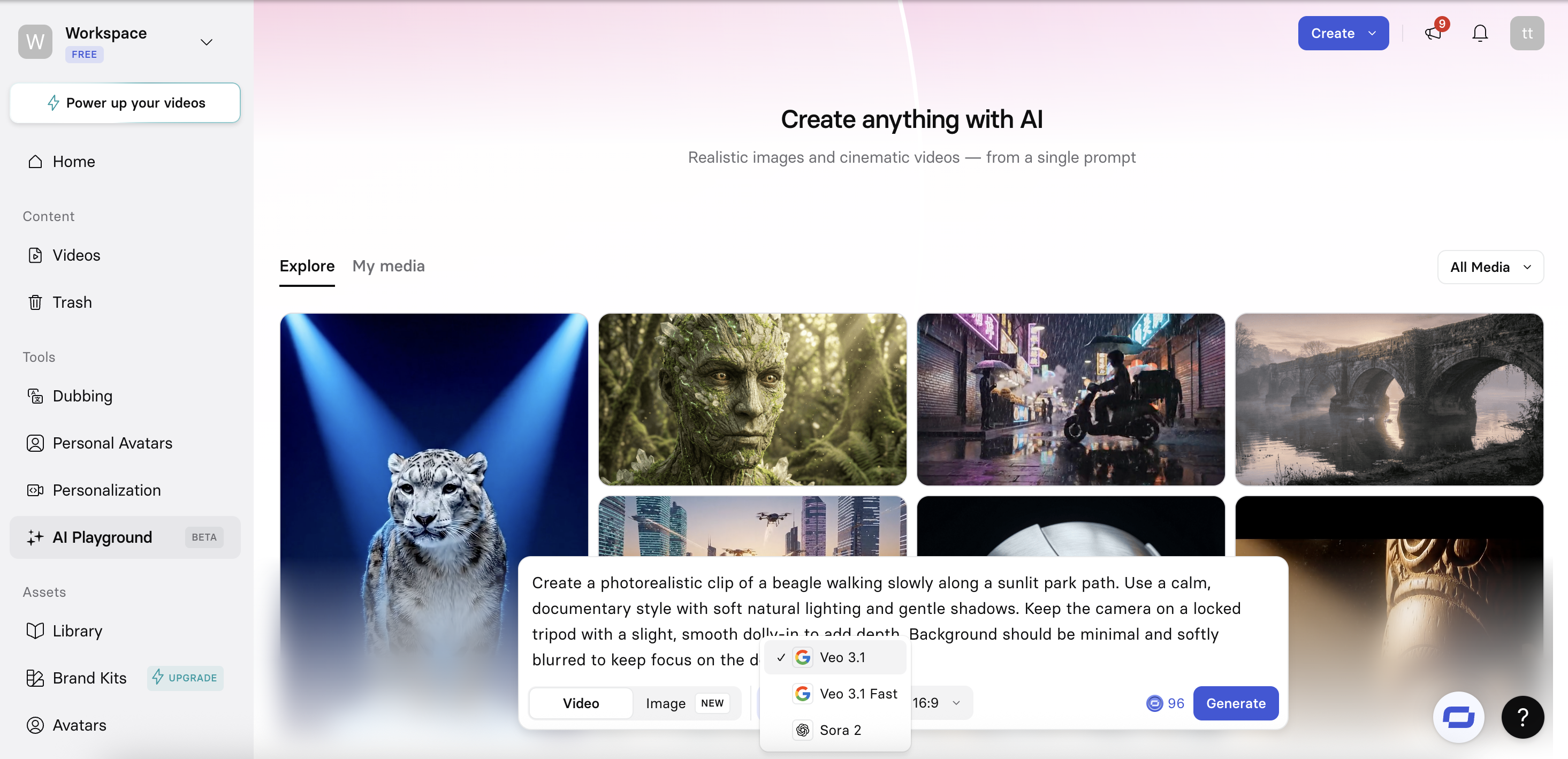
Step 4: Choose an AI video model and aspect ratio
Before generating the video, you can select from either Veo 3.1 or Veo 3.1 Fast models.

When to use Veo 3.1 vs Veo 3.1 Fast
Veo 3.1: It's best to use the base model when generating clips that you will use in your final video, as this will give you the highest quality visuals, motion, and cinematic detail.
Veo 3.1 Fast: Use the faster model when you are testing out a new prompt or concept and need to iterate on an idea quickly. You wouldn't typically use output from this model in your final video.
You can also choose between an aspect ratio of 16:9 (landscape) or 9:16 (portrait).
Step 5: Generate video
After submitting your prompt, your video clip will begin generating.
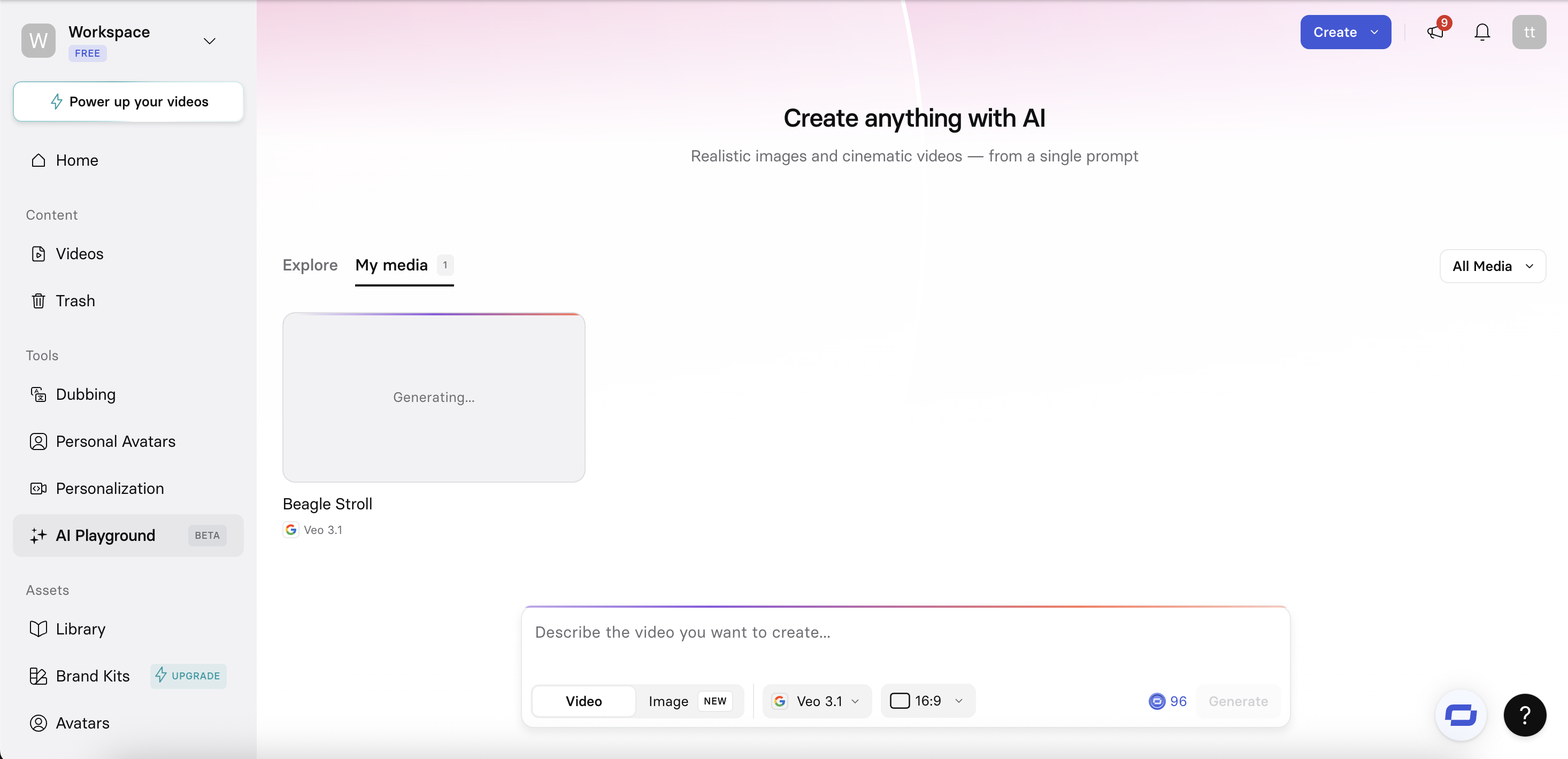
It will take a few moments to generate your clip.
While waiting, you can explore the pre-generated visuals in the AI Playground, or explore other areas of the Synthesia platform.
Step 6: Share, download, or start creating with your clip
Once your clip is ready, you can:
- Preview the full video
- Share it using a link or invite collaborators
- Download the clip in your preferred format
- Reuse the prompt and make adjustments to change the output
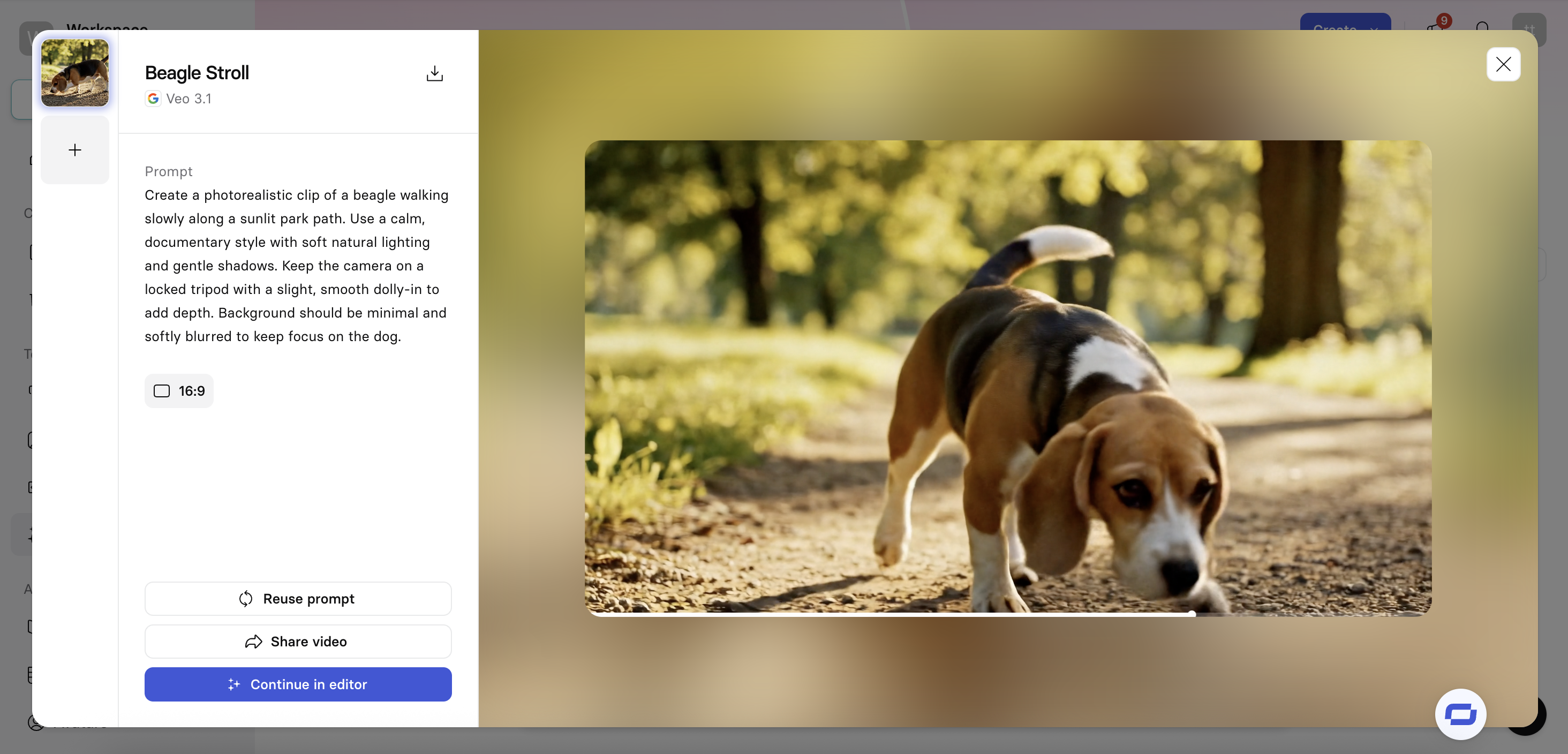
Step 7: Create a video from your clip in the Synthesia editor
To turn your AI video clip into a complete video, open it in the Synthesia editor by clicking Continue in editor.
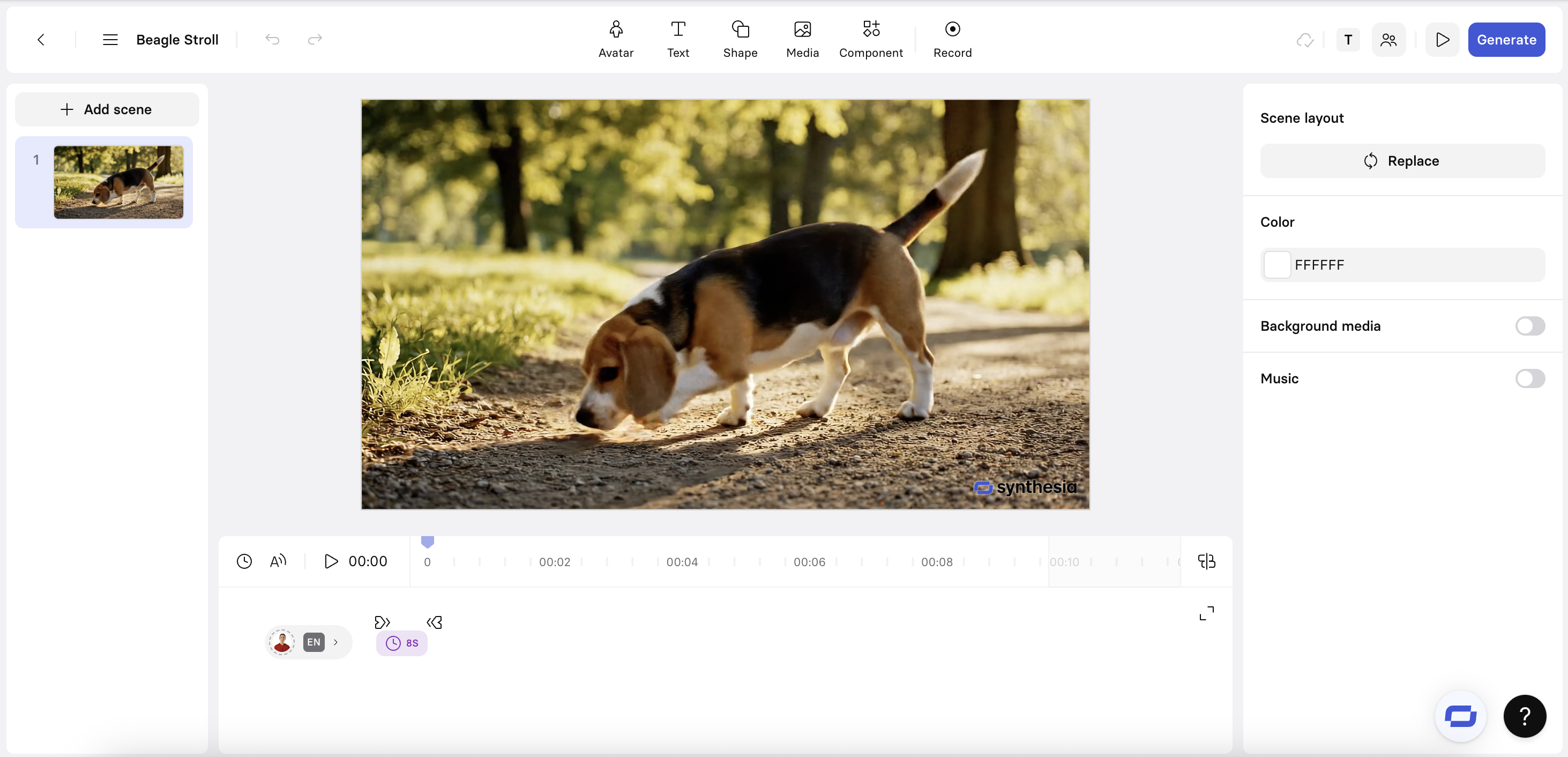
How to make AI videos for work
Step 1: Log in to Synthesia
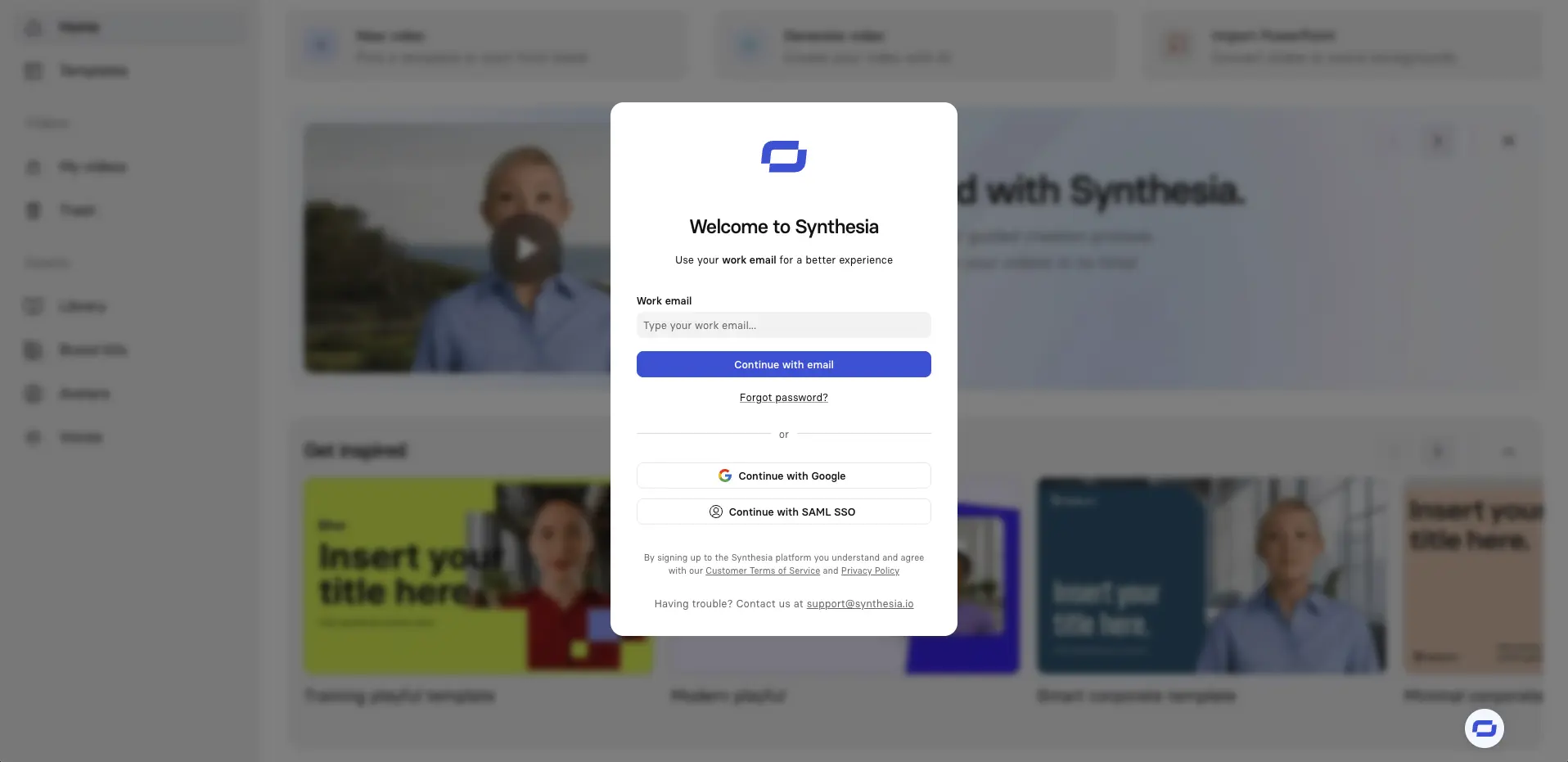
Click here to log in or sign up for a free account.
Step 2: Select Create from the homepage
Click Create at the top of the Synthesia homepage and select Video.
If you're uploading a PowerPoint and want to convert your slides 1:1 to video scenes, then choose the Import PowerPoint option instead.

Step 3: Choose an AI video template
Using a video template is the fastest way to get started and gives you professionally designed scenes to add structure to your video.
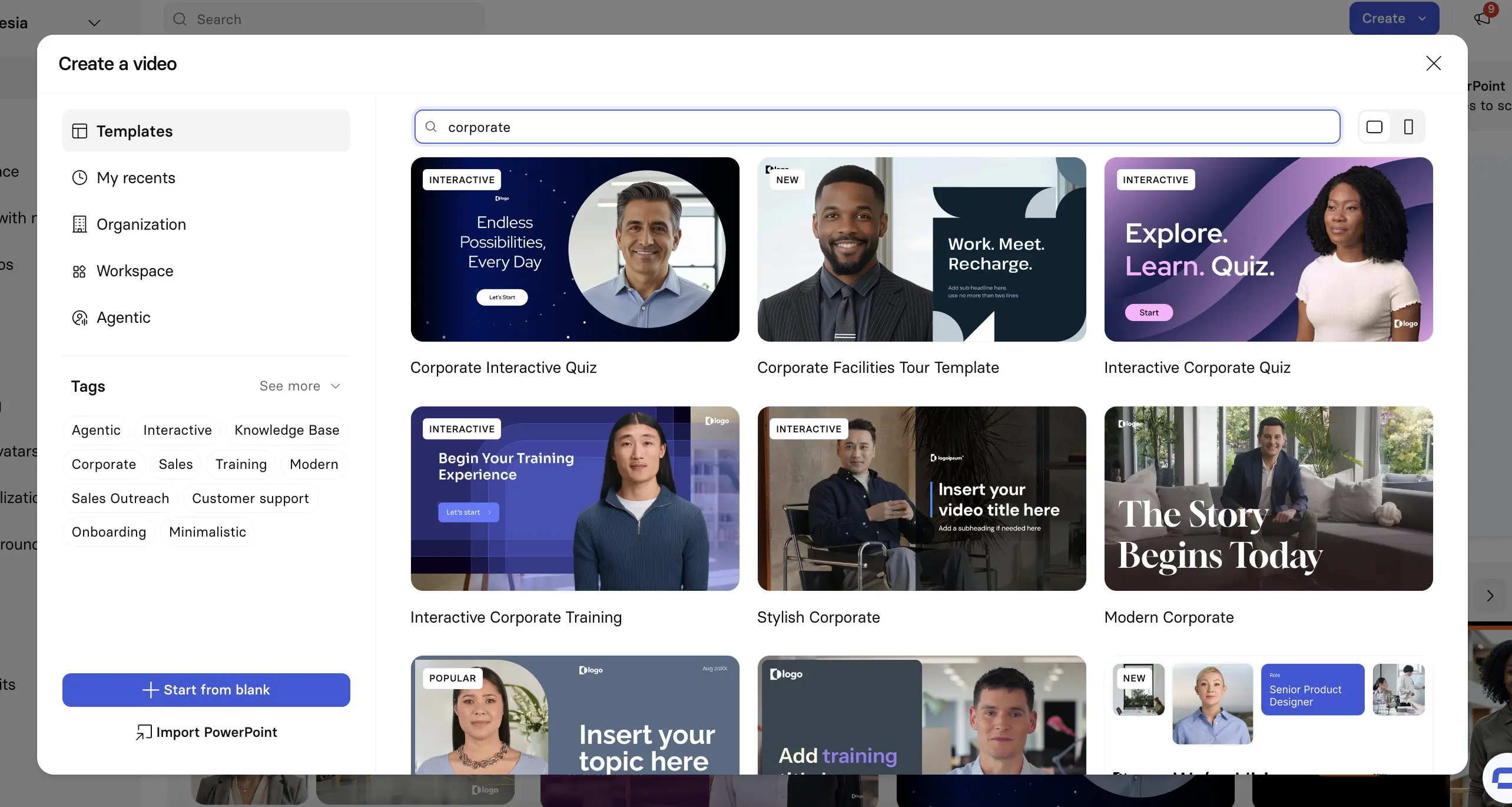
High-quality AI video templates you can use right away
Synthesia offers a wide variety of video templates which you can edit to fit your needs. Below are some of my favorite templates for a range of video types.
Training and education
Quizzes and interactive learning
Product demos and tours
Sales and outreach
Corporate and business presentations
Knowledge base and internal comms
Recruitment and HR
Step 4: Edit your video
Now it's time to edit your video.
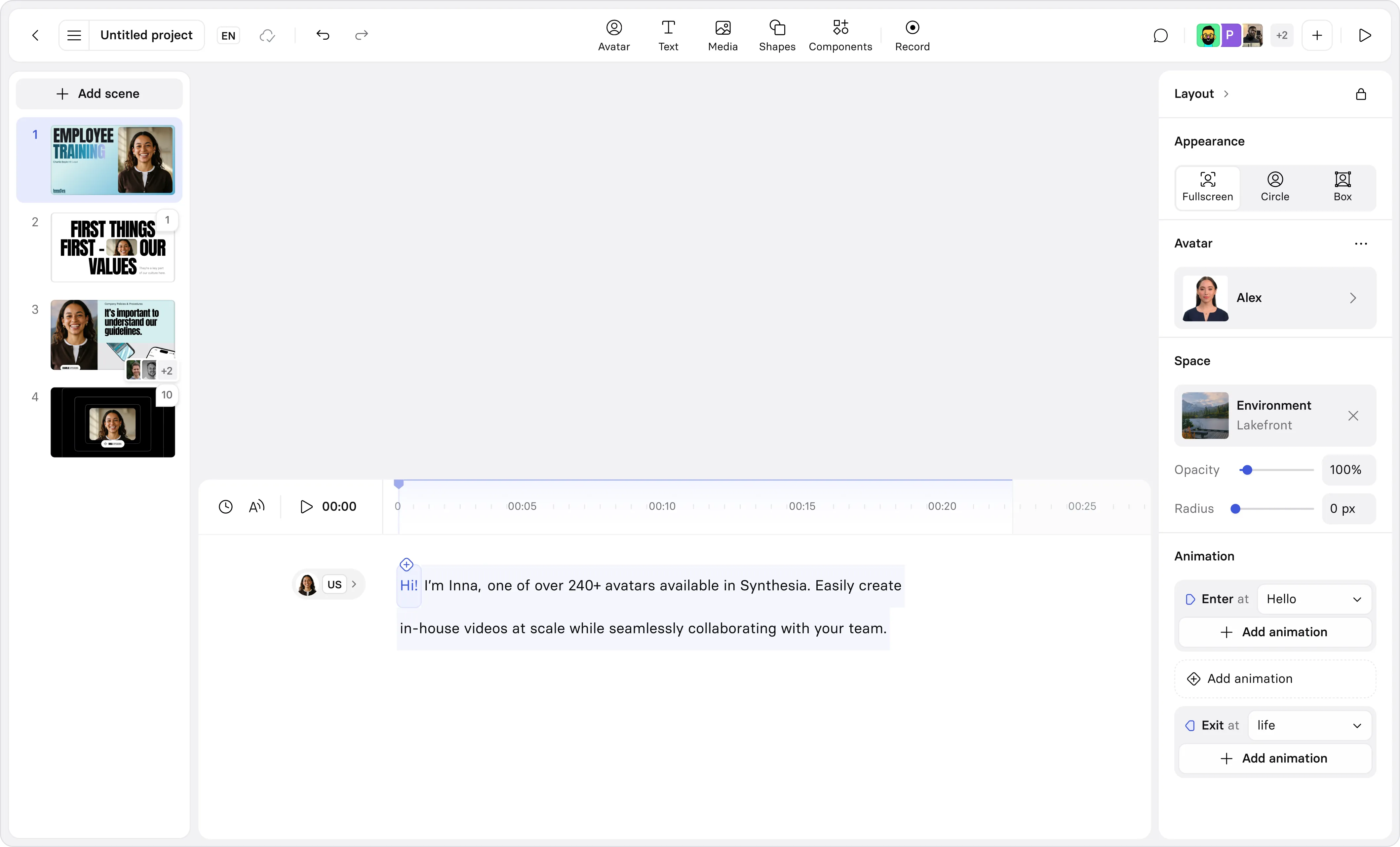
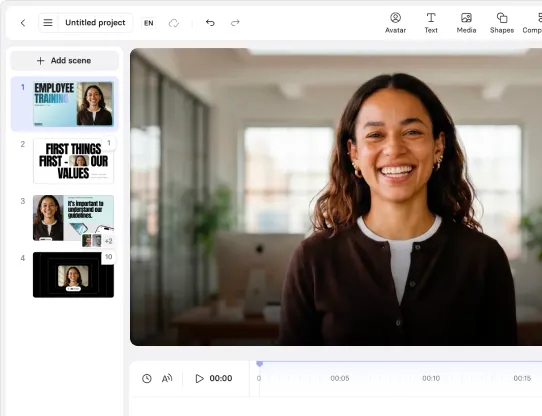
In Synthesia's editor you can review your scenes, refine each scene's script, and add avatars, B-roll, motion graphics, and screen recordings.
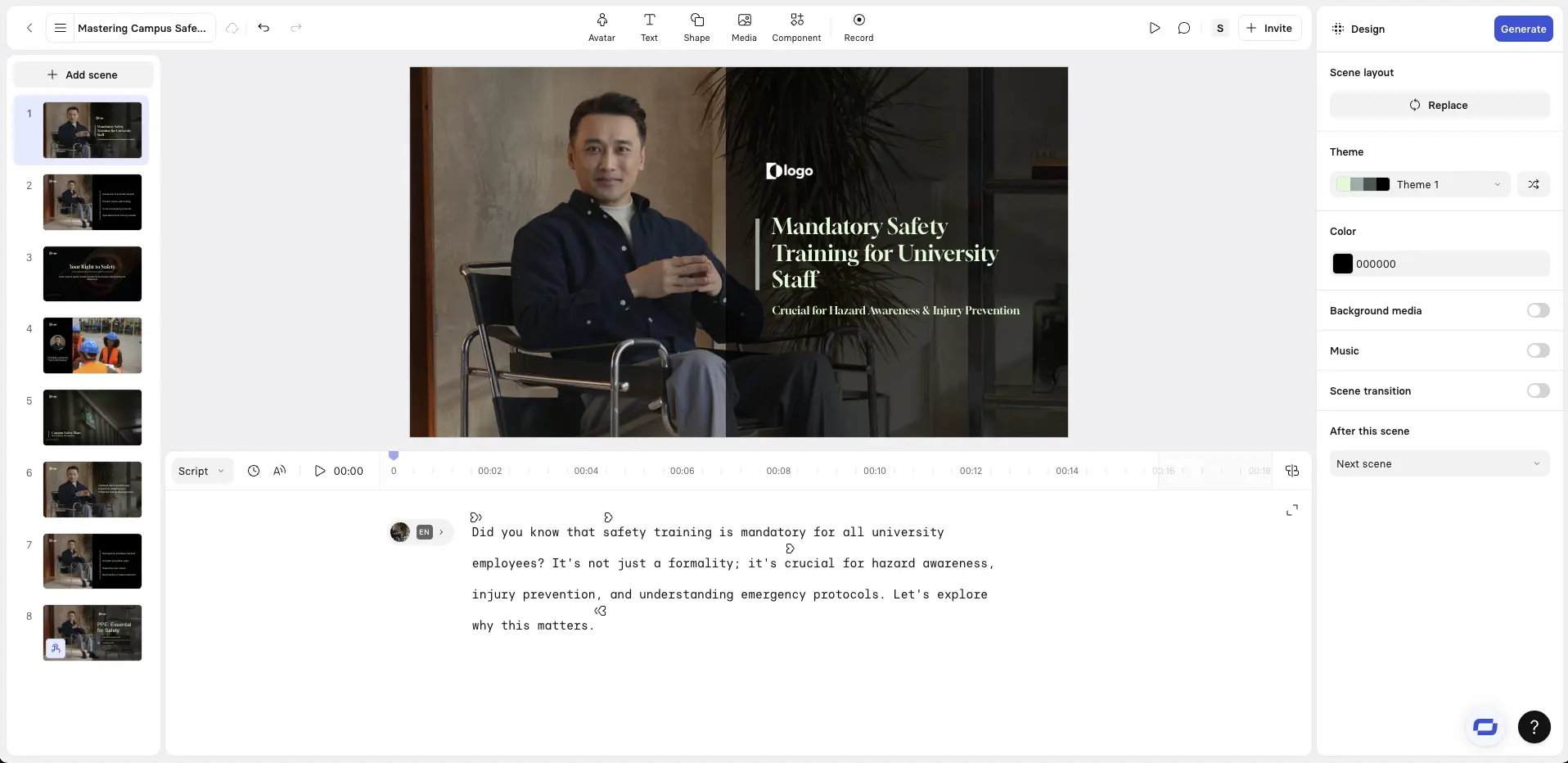
Choose an AI avatar and adjust the script
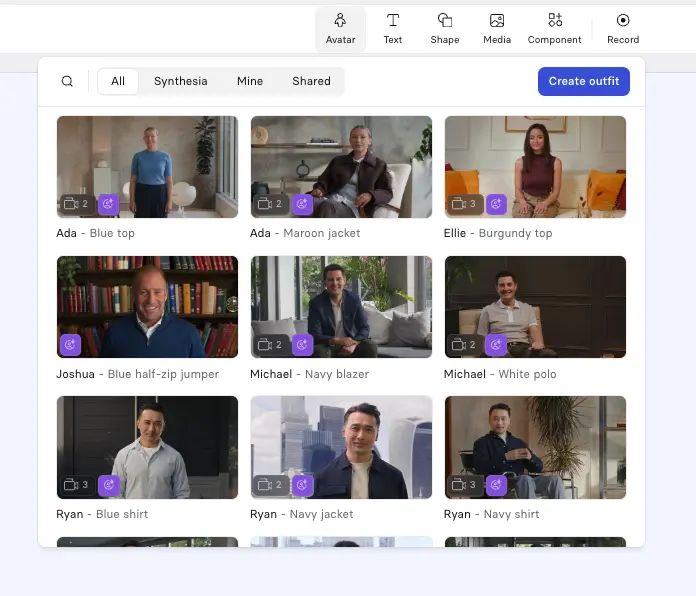
Click Avatar at the top of the editor to add an AI avatar to your video. Synthesia offers a wide variety of stock avatars as well as the option to create a custom avatar from a prompt or an image.
I suggest choosing an avatar that fits the context of your video, and I try to vary my avatar's placement and size between each scene in order to reset viewer attention without adding any distracting motion.
It's also important to select the right AI voice to go with your avatar. You should try to match the accent and tone to your primary target audience to increase engagement.
Add screen recordings
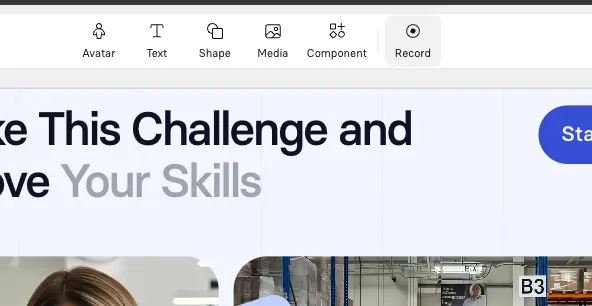
Synthesia has a great AI screen recorder.
I often use this for software tutorials. I'll typically use a talking-head plus screen recording layout, with the avatar on one side and the screen on the other.
Add B-roll
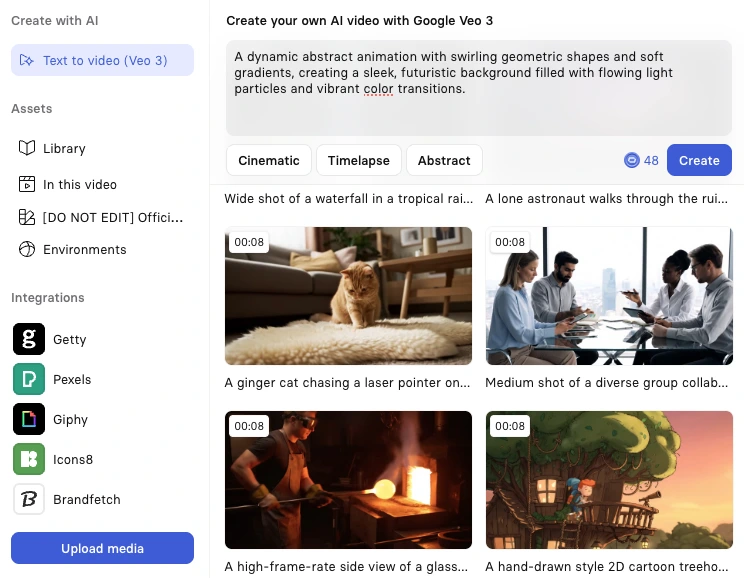
Click Media to add B-roll to your video. You can generate these video clips using an AI video model like Veo 3, upload your own videos, or use Synthesia's stock media library.
B-roll is great for breaking up long narrative-driven sections of your video and helps to keep your video visually engaging. I'll usually use it to show real-world examples, people performing a task, or any other visual that supports the narration.
Add interactivity
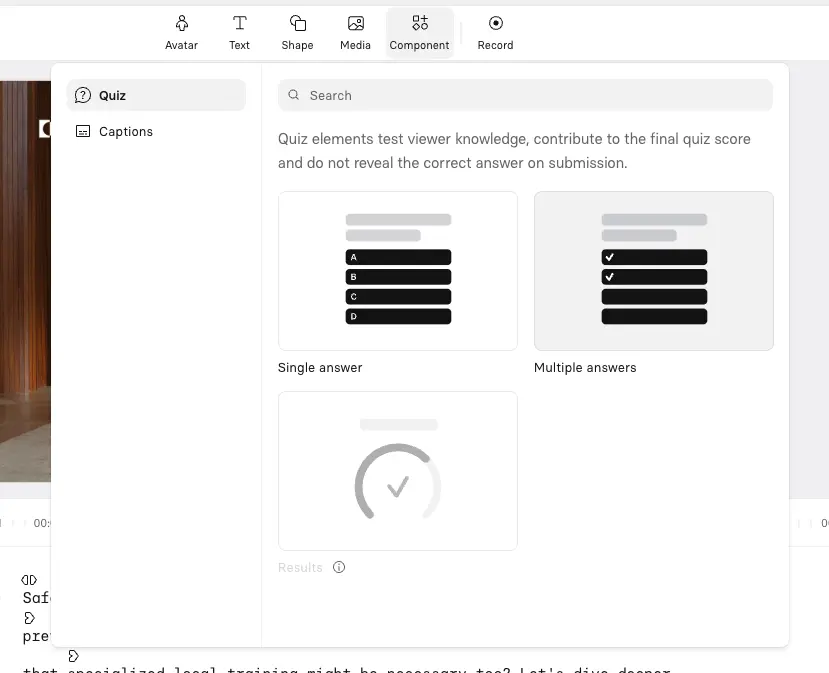
Synthesia allows you to add clickable buttons and hotspots, branching scenarios, and interactive quizzes to your videos. Click Interactivity at the top of your screen to add these components.
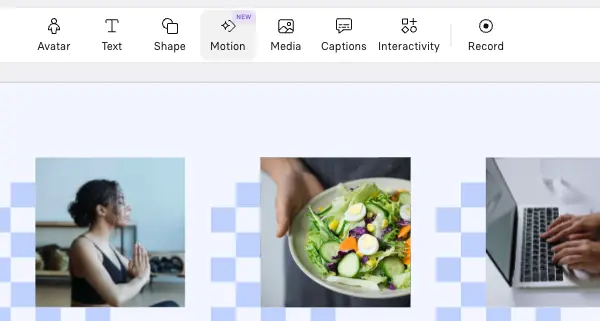
Add motion graphics
Click Motion at the top of your editor to start adding a motion graphic to your video. You can either use one of Synthesia's motion graphics templates or prompt one from scratch.
Step 5: Generate your video
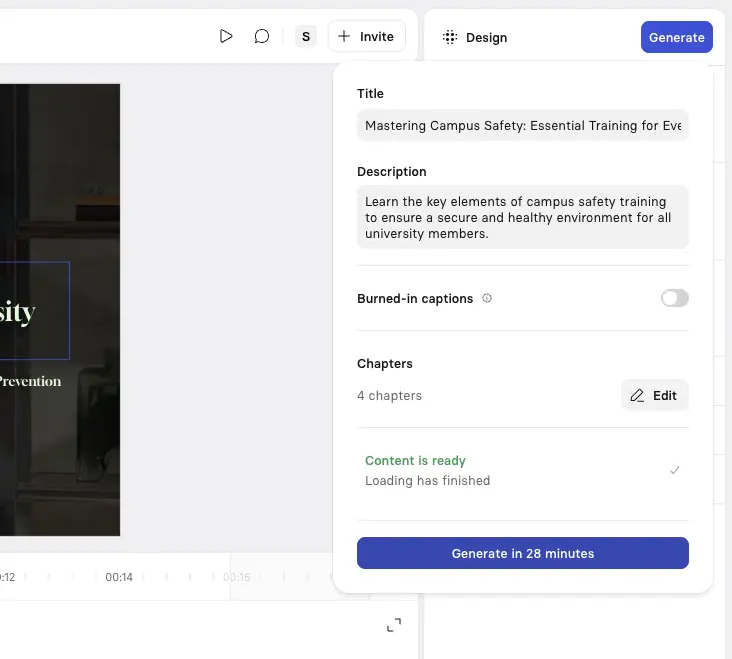
Hit Generate in the top right corner to generate your video.
You can then download your video as an MP4, get a shareable link, embed your video on a webpage, or download a SCORM version of your video and upload it to your LMS.
Step 6: Publish and share your video
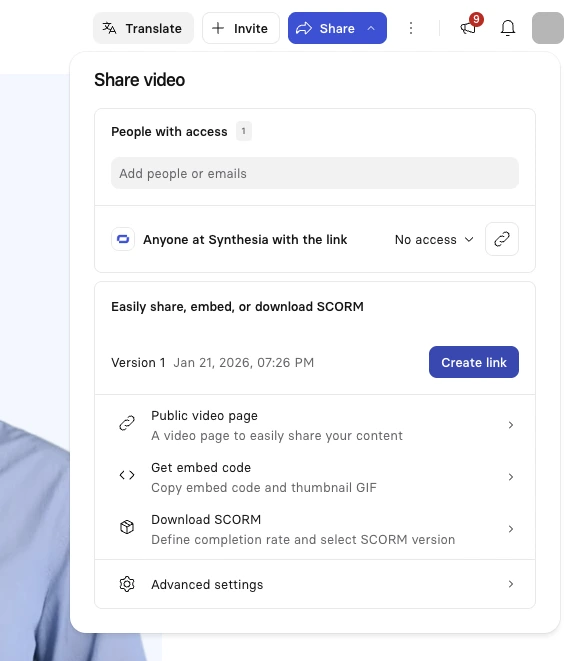
The final step is to publish and share your video.
Synthesia lets you export your video as an MP4 file, or you can publish it directly with Synthesia and embed the video wherever you like.
How businesses use AI video
Here are some of the most common real-world applications of AI video:
- Training and onboarding: L&D teams use AI to create engaging training and onboarding videos that are easy to update and localize.
- Product demos: Product and marketing teams combine screen recordings with clickable hotspots and AI avatars to create professional product walkthrough videos.
- Internal comms and announcements: A variety of teams use AI for internal comms videos with AI avatars based on senior leadership.
- Marketing explainers: Marketing teams use AI to create explainer videos with custom motion graphics and AI-generated B-roll.
- SOP videos: Companies use AI to convert document-based standard operating procedures into SOP videos that are easier to learn from while in the flow of work.
Kyle Odefey is a London-based filmmaker and Video Producer at Synthesia. His content has reached millions across TikTok, LinkedIn, and YouTube, even inspiring an SNL sketch, and has been featured by CNBC, BBC, Forbes, and MIT Technology Review.
Frequently asked questions
What’s the best AI video generator for creative videos?
I think the best AI video generator for cinematic videos is either ByteDance's Seedance 2 or Google's Veo 3.
Seedance 2 offers much longer video output, shorter generation times, and excels at complex physics and dynamic movement, while Veo 3 has strengths in character consistency and offers higher resolution output.
I often combine both models in my workflow depending on the shot I'm after, so I suggest you do the same.
What's the best AI video tool for work and business use cases?
Synthesia is the best AI video generator for business.
It combines super realistic AI avatars with an easy-to-use PowerPoint-style video editor and the ability to add interactivity, motion graphics, and AI-generated assets to allow you to generate enterprise-ready video in more than 160 languages.
Is Synthesia free?
Yes, Synthesia has a free plan that lets you create up to 10 minutes of video per month. You can find out more on our pricing page.

.jpg)
.webp)
.jpg)